This is a practical look at one category of reading tool, not medical advice. Low vision covers a wide range of conditions and severities, and what works for one person's reading may not work for another's. If you have not already talked to an eye care or low-vision specialist about assistive technology, that is the right first step for anything beyond general reading convenience. What follows describes a text-to-speech reader as one option worth knowing about alongside, not instead of, dedicated assistive technology.
Two different tools, two different jobs
Screen readers and text-to-speech readers get grouped together sometimes, but they solve different problems. A screen reader, VoiceOver on Apple devices, JAWS or NVDA on Windows, is built to describe an entire interface: every menu, button, and piece of navigation, so someone can operate a device fully by ear without needing to see the screen at all. That is an essential and different job from reading a document.
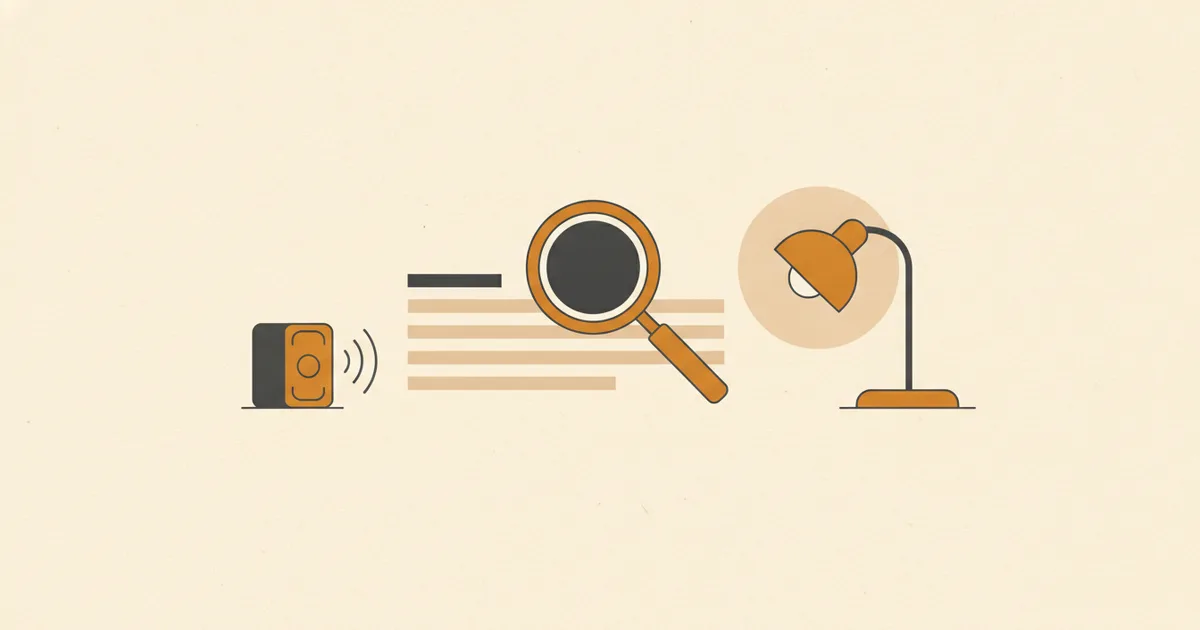
A text-to-speech reader like ReadLoud has a narrower focus: take a document's actual content and read it aloud, with a visual layout next to it that is itself adjustable for readability. It is not trying to describe an interface. It is trying to make one specific activity, getting through a long piece of text, work well whether you are relying mostly on your eyes, mostly on your ears, or some mix of both that shifts depending on how tired your eyes are that day.
Why some low-vision readers prefer this for long reads
This varies a lot from person to person, and there is no single right answer, but a reason that comes up often is overhead. A screen reader narrates everything: the fact that you are in a menu, that a button has focus, that you have moved to a new heading level. For operating software, that is exactly the information you need. For sitting down to get through a forty-page report or a novel, it can add a layer of narration you do not actually want in the way.
A reader built specifically for long-form content skips most of that. You open a document, you play it, and what you hear is the document's own words, not a description of where your cursor is. Meanwhile, if you have some functional vision, the visual side of the reader, large adjustable text, a high-contrast theme, and word-level highlighting that shows you where the audio is, can do a lot of the navigation work your eyes would otherwise need a screen reader to describe out loud.
What to look for: text size, themes, and contrast
For a reader to be genuinely useful with low vision, the visual side matters as much as the audio side, maybe more. ReadLoud lets you set text size independently from font, line spacing, letter spacing, and content width, so you are not stuck with whatever combination came bundled together. There are four themes, light, sepia, dark, and black, plus six accent colors, which matters because contrast preferences vary a lot: some people need maximum contrast, others find a very bright white background causes glare and prefer a darker theme instead.
None of these settings require audio to be playing. You can use the adjustable display purely as a more readable page, and bring in audio only for the parts, or the days, where reading visually is more effortful.
Keyboard control, not precision targets
Touch and mouse targets that need to be precisely aimed at are a common source of friction for low-vision users. ReadLoud's keyboard shortcuts cover the actions you use most: space or K to play and pause, arrow keys to skip forward, back, and change speed, shift with an arrow to move by sentence, F to toggle focus mode, S for settings, and V to change voice. Once you know the handful of keys you use regularly, you can operate the whole reading session without hunting for a specific on-screen button.
Speed and voice, adjusted to how you actually read
Speed runs from 0.5x up to 4x with pitch preserved, so slowing down for a dense paragraph does not turn the voice into a slow, distorted drone, and speeding up on something familiar does not make it squeaky. There are 30 voices across four different engines, with delivery styles like calm, newsreader, or storyteller for the Gemini-based voices, and you can preview any voice before committing and switch mid-document without losing your place. A voice that sounds comfortable to listen to for an hour, rather than merely intelligible, makes a bigger difference over a long document than most people expect going in.
Trying it without commitment
ReadLoud has no subscription: one minute is free with no account, twenty minutes free with a sign-up, and packs of minutes after that which never expire. That makes it reasonable to try with your own documents, at your own settings, before deciding whether it fits into how you read. You can read more about the accessibility features on the accessibility page and try it directly from the home page.
Getting a document ready without straining to read the source
One practical detail worth mentioning: you do not need to read the original document carefully enough to retype it or format it yourself. ReadLoud accepts pasted text, a web link, or an uploaded file (PDF, EPUB, DOCX, HTML, Markdown, plain text, or a CSV), and does the extraction itself, dropping page furniture like headers, footers, and page numbers that would otherwise interrupt the reading flow. Anything it could not extract cleanly is shown dimmed in the resulting text rather than silently missing, so you are not left wondering whether a gap in the audio means a gap in the document or a normal pause.
A library that remembers where you stopped
For anyone whose reading sessions are naturally shorter, whether from eye fatigue, interruptions, or just how the day goes, a document you cannot finish in one sitting is the normal case, not the exception. ReadLoud saves your position at the sentence level and keeps it synced if you use more than one device, so picking a long document back up later does not mean scrolling to find your place or restarting from the top. That matters more the longer and more frequently you read this way, and it is one of the more concrete differences between a purpose-built reader and reading a document open in a browser tab.